A Ten-Minute Google Listing Fix: Real Job Photos In, Stock Photos Out
You can fix the photos on your Google listing in ten minutes from your phone: open the listing, add photos of jobs you finished this month and remove stock or old ones. Choose photos that are in focus, well lit and show real work, because Google asks that images represent reality. No tools or cost needed.
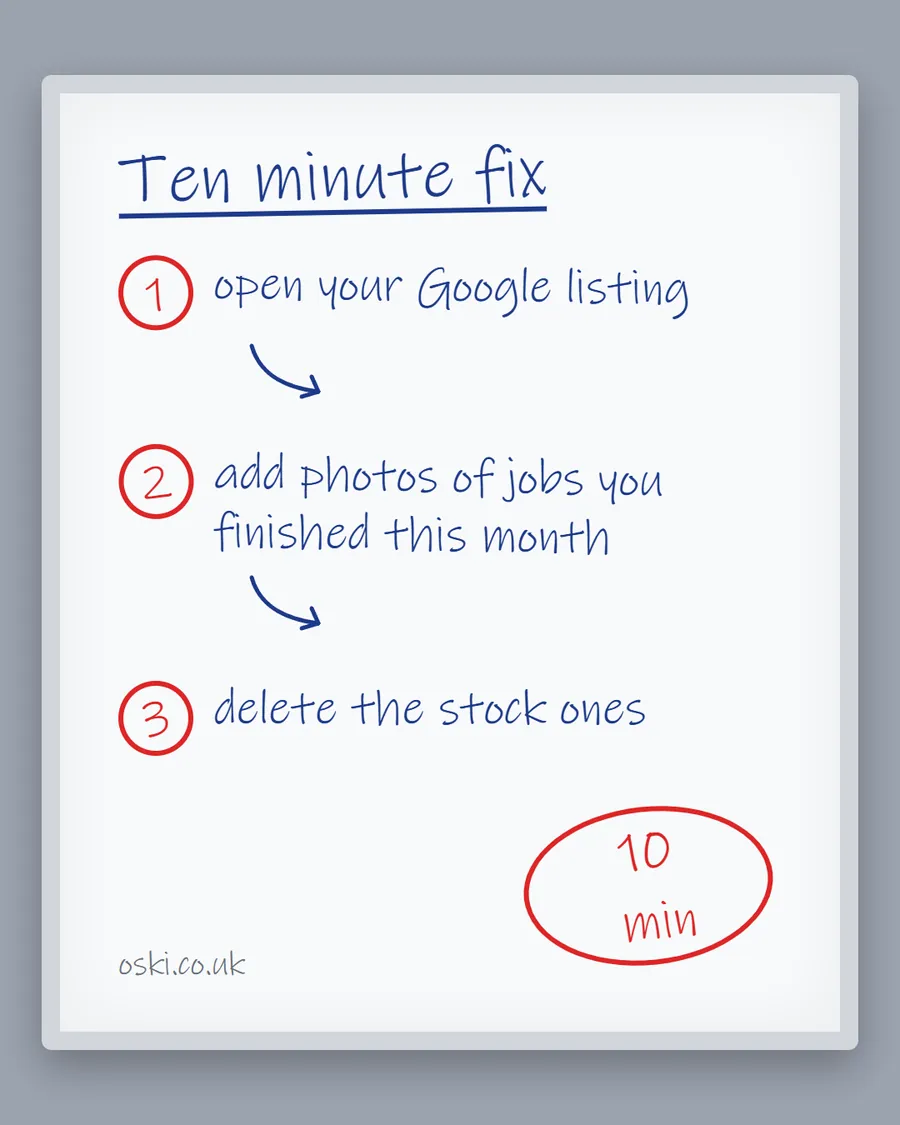
The ad at a glance
| Question | Answer |
|---|---|
| Who it is for | Tradespeople whose Google listing has no photos, stock photos or old ones, and who want a quick win. |
| What it shows | A whiteboard sketch headed "Ten minute fix" with three numbered steps in handwriting: open your Google listing, add photos of jobs you finished this month, delete the stock ones, with "10 min" circled in red. |
| Where it applies | Across the UK, with a focus on London and the South East, where we are based. It is aimed at small local businesses wherever customers search for them. |
| Why we published it | A short list that fits on a whiteboard is easy to act on, and the result is visible to customers immediately. |
Why start with photos?
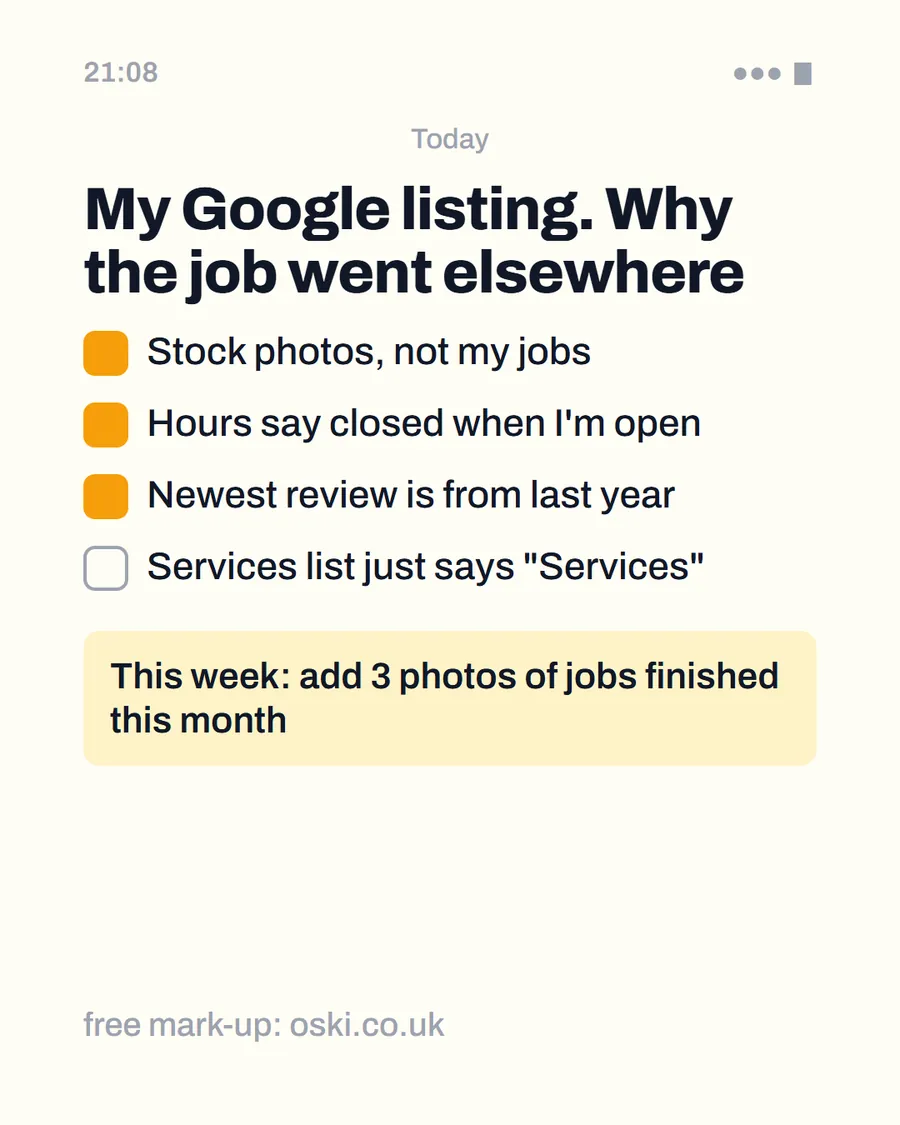
Because they are the fastest improvement and the one customers notice first. A listing with real photos of finished work looks like a firm that is busy and proud of its jobs. A listing with none, or with stock images, looks unfinished. It also costs nothing, and you probably already have the pictures.
Our post on four Google Business Profile problems that lose jobs covers the others, and photos are usually the first to fix.
Step one: how do you open your listing?
Sign in to the Google account that manages your profile on your phone. Search for your business name, or use the Google Maps app, and open your listing. You should see an option to edit your profile or add photos. Labels change over time, so if your screen looks different, follow Google's current help page.
If you cannot find the option, check that you are signed in with the right account, because a different account will show you the public view only. If you do not know who owns the profile, see who should own your website and Google profile.
Step two: which photos should you add?
Choose three to five from jobs finished this month. Google's photo guidance says a photo should be in focus and well lit, with no significant alterations or excessive use of filters, and that the image should represent reality. In practice:
- Show the finished work. One clear subject, such as a tiled wall, a boiler or a roof.
- Use daylight where you can. Avoid dark, grainy photos.
- Keep it honest. No heavy filters or edits.
- Check for privacy. No faces, house numbers or number plates, and get the customer's permission.
- Mix them. A range of jobs shows what you can do.
Google's page also gives technical details: JPG or PNG files between 10 KB and 5 MB, with a recommended size of 720 by 720 pixels and a minimum of 250 by 250. Any modern phone photo meets that.
Step three: how do you remove stock photos?
If you uploaded stock or old images yourself, you can remove them from the listing's photo section. Do this after adding the new ones so the listing is never empty. For photos that others have added and which break Google's guidelines, check Google's help pages for how to report them.
Do not delete everything. If a photo is genuine and still looks good, such as the outside of your premises or your van, keep it. Google's help page notes that exterior photos help customers recognise your business when they visit.
What should you do after the ten minutes?
Look at the listing on your phone as a customer would. Are the new photos the first things you see? Do they look like your work? If something looks off, swap it. Then add a short caption or description on your website for each, using the approach in how to use photos of your work.
Set a monthly reminder to add one or two more. A steady trickle of fresh photos keeps the listing looking active, and it takes a minute each time.
What if you have no photos to use?
Take some this week. Start with your van, your tools and any finished job you can photograph with the customer's permission. If you have nothing recent, a photo of you at work, taken by a colleague, is a good start. Avoid stock photos, for the reasons in stock photos on a trades website. Even two real photos are better than ten borrowed ones.
How do you take better photos in a minute?
You do not need training. Wipe the lens with your sleeve, because fingerprints blur photos more than anything else. Stand back far enough to show the whole job, and hold the phone level. Use daylight where you can, and avoid shooting into a bright window. Tidy the area first, moving tools and bags out of frame.
Take three shots of the same job and pick the best. Wide, horizontal photos tend to suit listings, since most listing screens crop to a wide shape, but check how yours looks on the profile. If a photo looks dark or dull, take another rather than adding a heavy filter, because Google asks for photos without excessive filters.
What to do this week
- Open your listing on your phone, signed in as the owner or manager.
- Add three to five photos of jobs finished this month.
- Remove any stock or old photos you uploaded yourself.
- Check the listing as a customer would.
- If you would like us to review the rest of your listing, send us your business name and town.
Frequently asked questions
How do I add photos to my Google Business Profile?
Sign in with the Google account that manages your profile, open the profile and choose to add photos. The menu labels change over time, so follow Google's current help page if yours look different, then check the listing on a phone.
What size should Google Business Profile photos be?
Google's guidance says JPG or PNG, between 10 KB and 5 MB, with a recommended size of 720 by 720 pixels and a minimum of 250 by 250 pixels. Photos should be in focus and well lit.
How many photos should I add?
Start with at least five good ones from recent jobs and add more after each finished job. Quality matters more than quantity, and recent photos show that you are active.
Can I remove photos I do not like?
You can remove photos you uploaded yourself. For photos added by other people that break Google's guidelines, use Google's reporting options. Check the help page for the current steps.